Creating an Evaluation Set
An evaluation set is the collection of test inputs you'll use to evaluate your target. Kaleidoscope generates diverse, realistic inputs by first creating personas and then generating inputs from each persona's perspective.
Step 1: Create Personas
Personas are realistic user archetypes representing the different types of people who interact with your application.
| Field | Description |
|---|---|
| Title | A short label (e.g. "Elderly patient seeking medication info") |
| Info | Background context about this user type |
| Style | How they communicate (formal, casual, terse, detailed) |
| Use case | What they typically ask about |
There are three ways to create personas:
- Generate with AI - Kaleidoscope uses your target's purpose, target users, and knowledge base to generate relevant personas with an LLM. Choose how many to create.
- Random Personas - Sample from the Nemotron Personas dataset, a large collection of realistic user profiles. Useful for quickly bootstrapping diverse persona sets.
- Add Manually - Define personas yourself when you have specific user archetypes in mind.
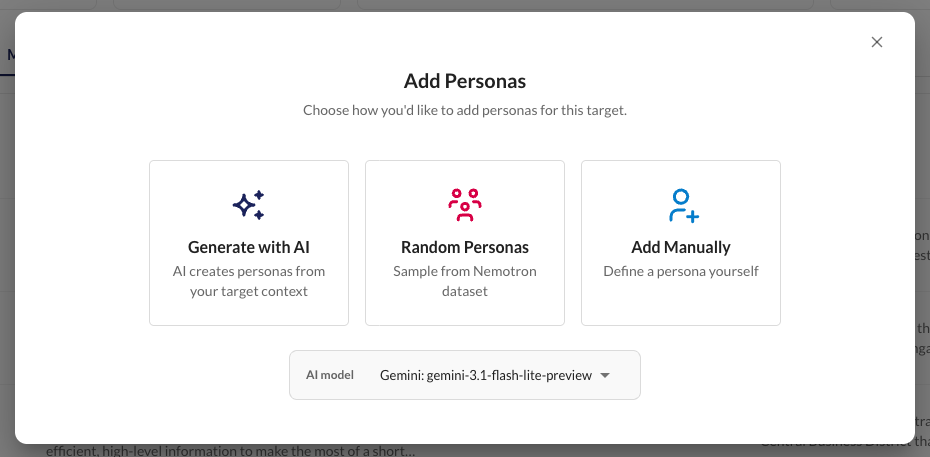
By default, Kaleidoscope samples from nvidia/Nemotron-Personas-Singapore. To use a different country variant, set NEMOTRON_PERSONAS_DATASET in your .env file to any nvidia/Nemotron-Personas-* HuggingFace dataset. If the style defaults for your specific Nemotron dataset cannot be found in the code, you can add them in the persona sampler.
Reviewing Personas
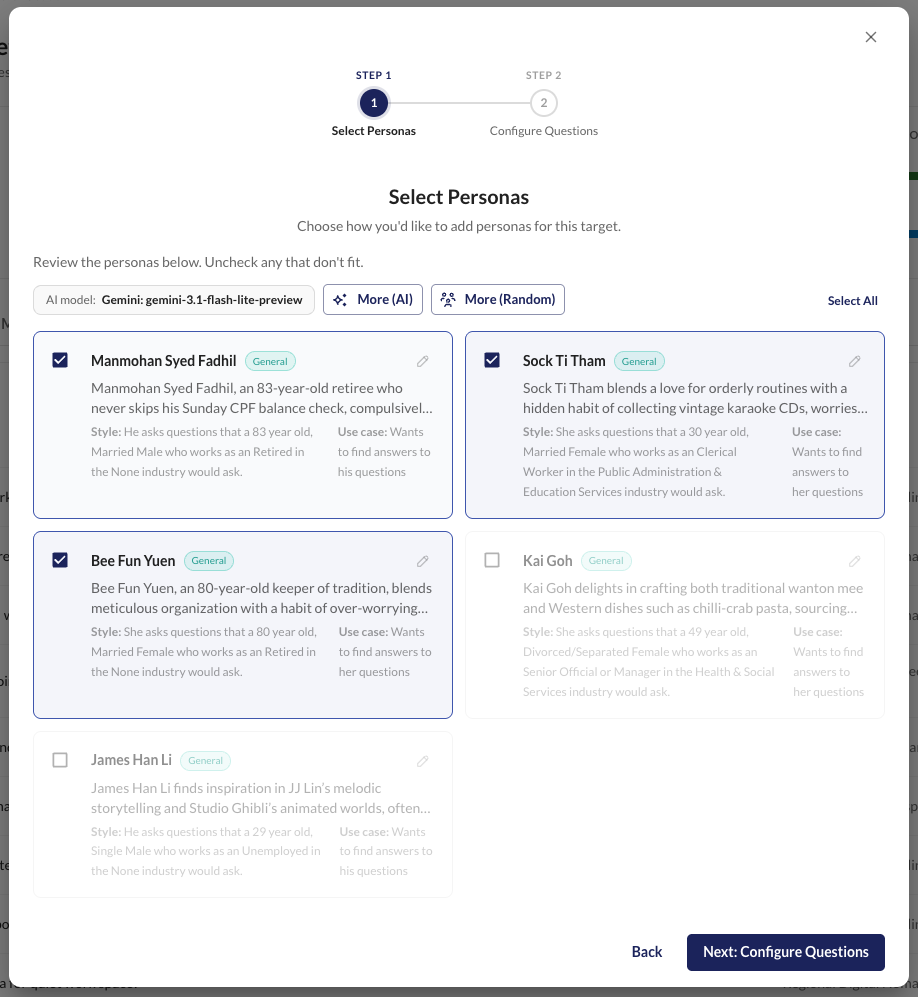
Generated and sampled personas start in pending status. Review each one and:
- Approve - include in input generation
- Reject - exclude from input generation
- Edit - modify and save (status becomes "edited")
Only approved personas are used for input generation.
Step 2: Generate Inputs
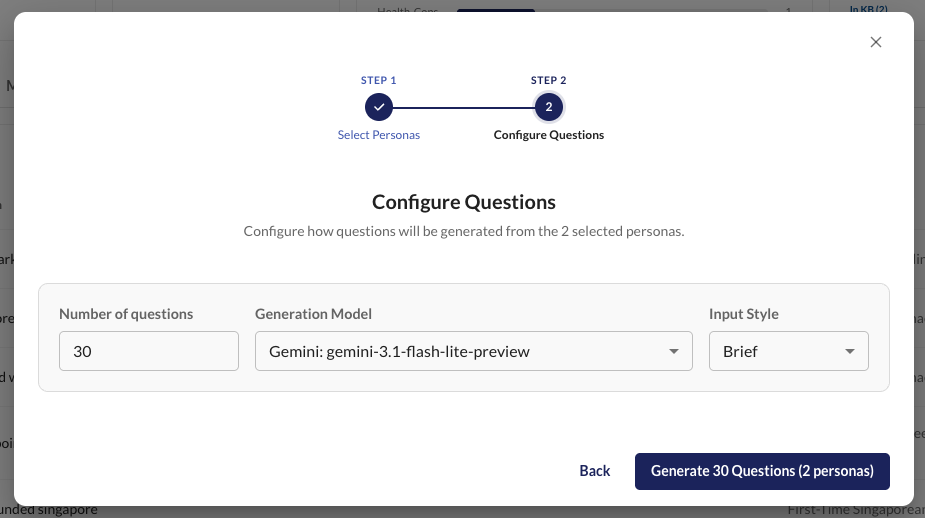
Once you have approved personas, generate test inputs from their perspectives. For each batch you configure:
| Setting | Options | Effect |
|---|---|---|
| Count | Any number | Total number of inputs to generate (distributed across personas and languages) |
| Input style | Brief / Regular / Detailed | How much context the LLM prompt includes when generating |
| Model | Any configured model | Which LLM generates the inputs |
| Languages | Any selection (default: English) | Which languages to generate inputs in; the total count is split evenly across selected languages |
Distribution Logic
Inputs are distributed evenly across all approved personas, then within each persona they are allocated across type/scope combinations using weighted ratios.
When a knowledge base is uploaded:
| Type | Scope | Weight |
|---|---|---|
| Typical | In-KB | 70% |
| Typical | Out-of-KB | 10% |
| Edge case | In-KB | 15% |
| Edge case | Out-of-KB | 5% |
When no knowledge base is present:
| Type | Scope | Weight |
|---|---|---|
| Typical | Out-of-KB | 80% |
| Edge case | Out-of-KB | 20% |
- Typical inputs represent common asks from real users.
- Edge case inputs are unusual, adversarial, or boundary-pushing.
- In-KB inputs are answerable from uploaded knowledge base documents.
- Out-of-KB inputs are outside what the target's knowledge base covers.
These ratios are configurable in backend/src/common/config.py.
Setting Languages
You may generate test inputs in various languages. When more than one language is selected, the total input count is divided evenly across all selected languages first. The Distribution Logic above then runs independently for each language, and each generated input is tagged with its language.
Make sure your target accepts inputs in the languages you select — Kaleidoscope will send the generated inputs as-is. Judges always produce their reasoning in English (see Scoring and Validation), with the assumption that the judge model can comprehend the source language. You can swap in a different model using Custom Judges if needed.
Uploading Inputs
If you already have test inputs, you can upload them directly (CSV, JSON, or Excel) instead of generating. Uploaded inputs are marked with source "uploaded" and can optionally be assigned to existing personas by title. The language setting only applies to generated inputs — uploaded inputs are stored without language metadata.
Reviewing Inputs
Generated inputs start as pending. Review and approve the ones you want to include in scoring.
Snapshots
Once you're happy with your approved inputs, create a snapshot - a versioned evaluation run. A snapshot locks in the current set of inputs so you can score, annotate, and compare results with other snapshots.
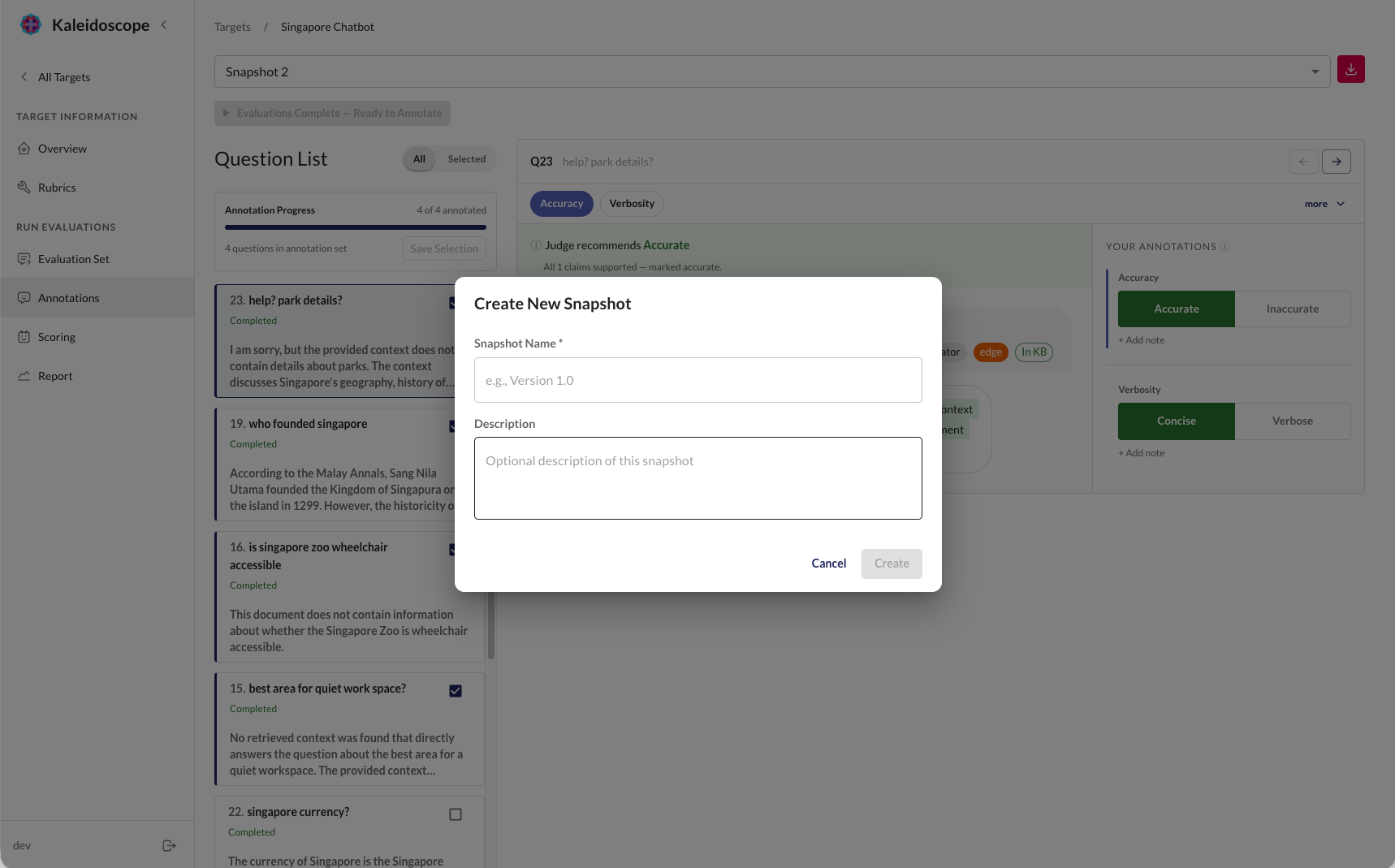
Once a snapshot is created, you can run scoring, annotate outcomes with human labels, and compare results across snapshots to measure improvement over time.