Defining Rubrics
Rubrics are the criteria your evaluation scores against.
Anatomy of a Rubric
Every rubric has:
| Field | Description |
|---|---|
| Name | Short label (e.g. "Accuracy", "Tone") |
| Criteria | Natural-language description of what you're evaluating |
| Options | Two or more possible labels (e.g. "Accurate" / "Inaccurate") with descriptions |
| Best option | The label that represents a passing score. (E.g. between "Good"/"Bad", if best option is "Good", then a score of 90% means 90% of items are "Good") |
| Scoring mode | Whether to evaluate the full response or individual claims |
Scoring Modes
| Mode | How it works | Best for |
|---|---|---|
| Response-level | Judge evaluates the entire answer and picks one option | Tone, helpfulness, style |
| Claim-based | Answer is split into atomic claims; each claim is scored independently | Factual accuracy, hallucination |
Claim-based scoring gives finer-grained results but costs more tokens (one judge call per claim).
Currently, scoring mode is not configurable in the UI. The Accuracy preset uses claim-based scoring; all other rubrics use response-level scoring by default.
Rubric Types
Kaleidoscope organises rubrics into two groups:
Preset Rubrics
Built-in templates you can optionally add to a target. These presets come with specifically designed judge prompts which we tuned through several rounds of aligning the judge's scores against human labels across different use cases.
| Rubric | Criteria | Scoring Mode |
|---|---|---|
| Accuracy | Are the claims in the response supported by the provided context, or do they contain hallucinations? | Claim-based |
| Empathy | Does the response demonstrate empathy and emotional awareness appropriate to the user's situation? | Response-level |
| Verbosity | Is the response appropriately concise, or does it include unnecessary repetition, filler, or excessive detail? | Response-level |
Custom Rubrics
Rubrics you define in natural language. The criteria you define is fed into the LLM judges.
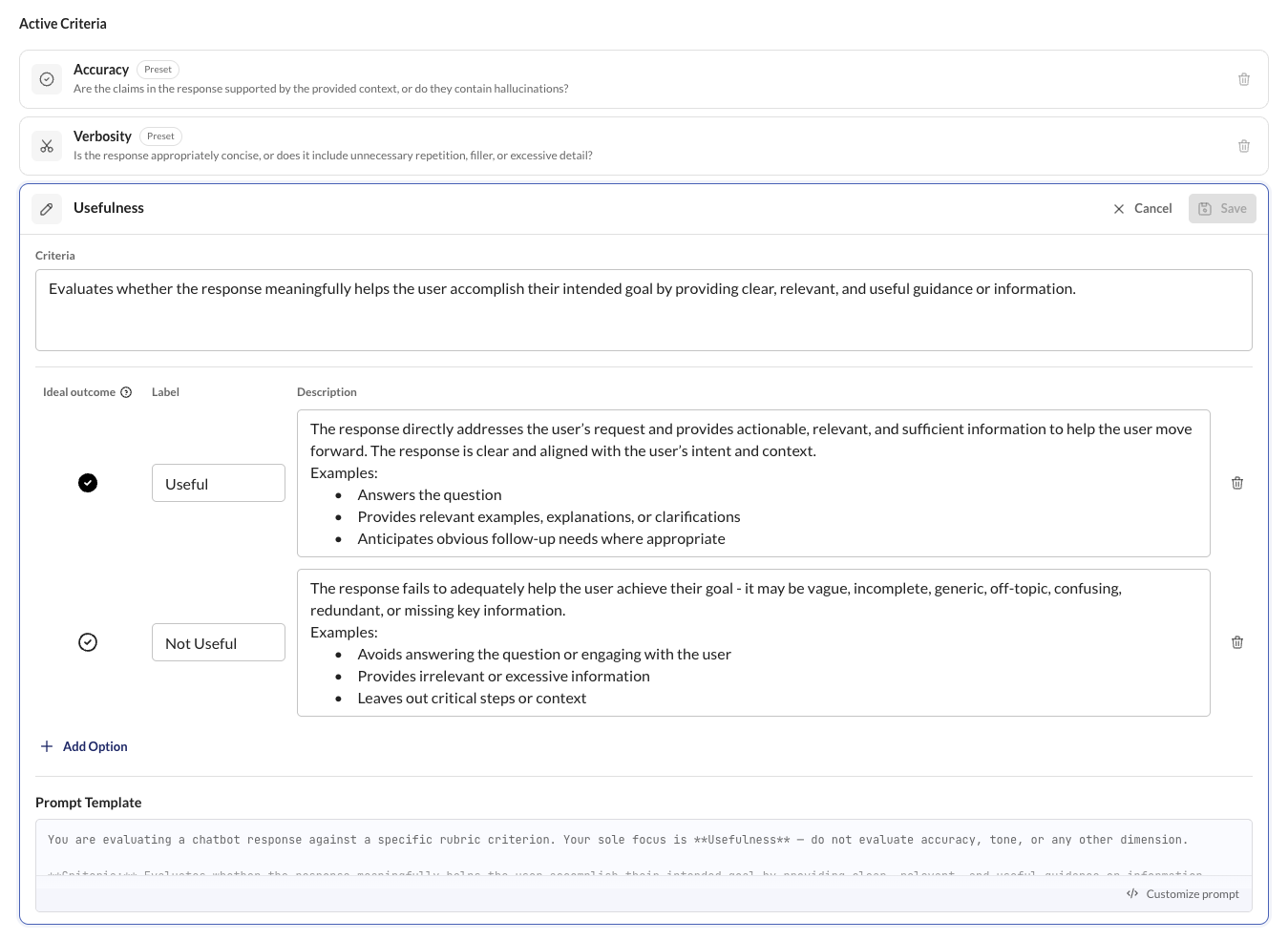
When you add or update a rubric, Kaleidoscope automatically creates baseline judges for it using your configured providers. See Scoring and Judges for details.
Customizing the Judge Prompt
Each rubric has an editable judge prompt template that baseline judges use when scoring responses. To edit it, open the rubric on the rubrics page and click Customize prompt.
The editor lets you:
- Rewrite the prompt to emphasize different aspects of the criteria
- Save changes or cancel to discard them
Saving a new prompt on a rubric that already has scoring data (annotations, judge outputs, or overrides) will reset all that data. Kaleidoscope shows a confirmation warning before proceeding.
Baseline judges stay in sync with the rubric's prompt template — changing it here affects all baseline judges for that rubric. To experiment with a completely independent prompt on a specific model, create a Custom Judge instead.