Scoring and Validation
Once you have an evaluation set, scoring and validation happen on the same page: judges score your target's responses automatically, you annotate a sample with human labels, and Kaleidoscope calculates how reliable each judge is.
Baseline Judges
When you create or update a rubric, Kaleidoscope automatically generates up to three baseline judges using different models from your configured providers. The first is marked as the primary baseline.
Baseline judges cannot be edited (they stay in sync with the rubric definition). To experiment with different models or prompting strategies, see Custom Judges below.
The primary baseline judge is what you see used by default in the annotations interface and the evaluation set page.
Running a Scoring Job
A scoring job processes your evaluation set through three stages:
Stage 1: Generate Responses
Kaleidoscope sends each approved input to your target and stores the response along with metadata (model used, tokens, RAG citations if available).
Stage 2: Extract Claims (claim-based rubrics only)
For rubrics using claim-based scoring, each response is decomposed into atomic factual claims. Claims are checked for "checkworthiness" - trivial or subjective statements are skipped. This stage is skipped entirely if no rubrics use claim-based scoring.
Stage 3: Score
Judges evaluate each response (or claim) and produce a verdict. For response-level rubrics, each judge picks one option. For claim-based rubrics, each checkworthy claim is scored independently and results are aggregated.
Judge reasoning is always written in English, regardless of the language the input was generated in. This keeps scores readable across multilingual evaluation sets.
Job Status
| Stage | Description |
|---|---|
| Starting | Job initialised |
| Generating responses | Calling your target |
| Processing responses | Extracting claims |
| Scoring responses | Judges evaluating |
| Completed | All scores available |
Questions are batched and queued: they run through the pipeline with bounded concurrency rather than all at once. A failed question shows its own error and does not block the others — the evaluate button then offers to re-run just the failed ones.
Failures on large runs
On large runs (e.g. 30+ questions) some questions may fail with a provider error such as ServiceUnavailableError / HTTP 502 / 503 ("This model is currently experiencing high demand" / UNAVAILABLE). This is a transient overload of the underlying model — either your target application's model (surfaced as a 502 from the target) or a judge model — not a hard quota limit.
Kaleidoscope retries these automatically with exponential backoff plus jitter (jitter spreads simultaneous retries so they don't all hit the overloaded model in the same instant). A question only fails after its retries are exhausted, and failures never block the other questions.
If failures persist on large runs, reduce the sustained request rate:
- Target-side overload (error traced to answer generation / a
502from your target): lowerBATCH_MAX_CONCURRENT_JOBS— this is how many questions call your target in parallel. - Judge-side overload (error during scoring): lower
LLM_MAX_CONCURRENTand/orBATCH_MAX_CONCURRENT_CLAIMS.
See Environment Variables → LLM Concurrency & Throttling. Re-running just the failed questions after the first pass usually succeeds, since the transient spike has passed and the queue is no longer saturated.
Cost Tracking
Every scoring job tracks token usage (prompt + completion) and estimated cost. View totals on the scoring page to monitor spend across different models and rubrics.
Annotations
Automated judges are useful, but you need to know how much to trust them. Human annotation creates the ground truth that validates judge reliability.
Selecting Responses
By default, 20% of your evaluation set is selected for annotation, but a representative sample is enough. We recommend starting with 50 generated inputs and annotating 10-20 of them.
Selected responses are flagged across all rubrics, so you annotate the same responses for every rubric to get comparable alignment metrics.
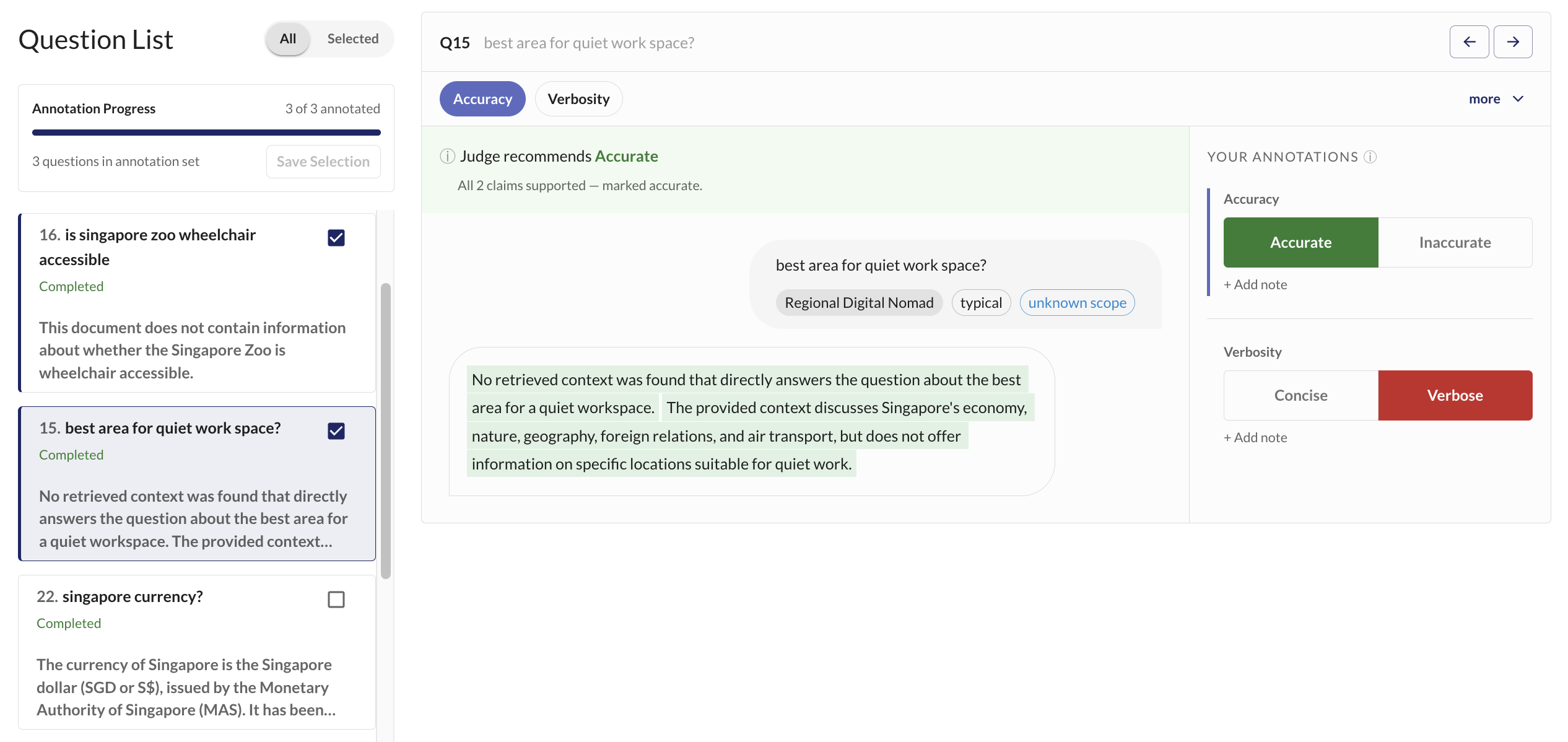
The annotation interface shows the judge's recommendation alongside your annotation buttons. For each response and rubric, you choose the label you believe is correct. The judge's pre-filled recommendation speeds up the process - you only need to confirm or override it.
LLM-assisted claim review
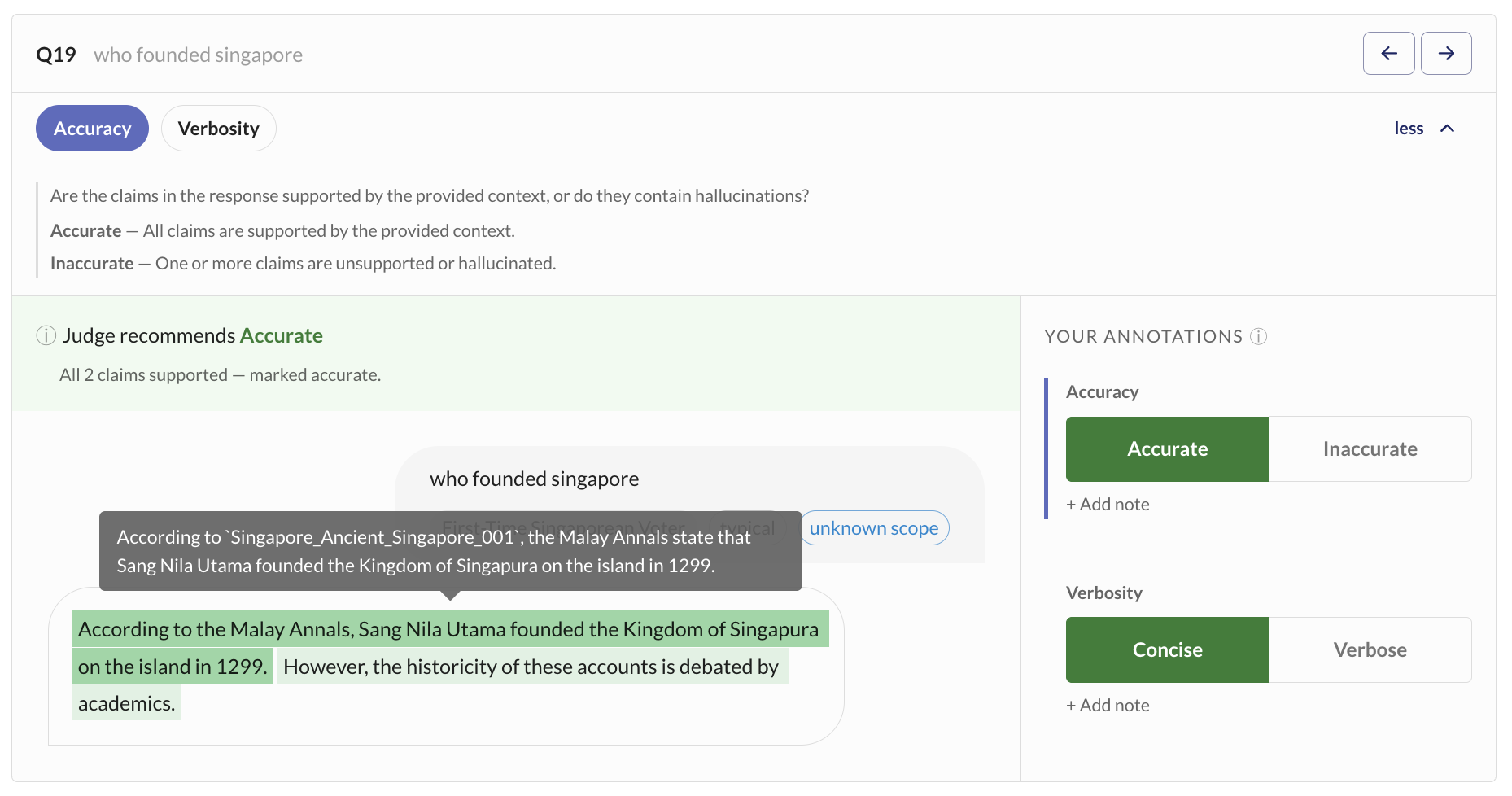
For claim-based rubrics like Accuracy, the UI shows individual claims extracted from the response, color-coded by whether they are supported by the knowledge base. This helps you quickly identify which specific claims are accurate or hallucinated.
Judge Reliability
Once you've annotated enough responses, Kaleidoscope compares judge scores against your annotations using macro F1 as the primary reliability metric.
A judge with F1 >= 0.5 is considered "aligned" and trusted for aggregation. Judges below this threshold are flagged as unreliable and their scores are excluded from the aggregated verdict.
The reliability threshold is configurable here with RELIABILITY_THRESHOLD.
Multiple Judges
In the scoring page, you can run more than one judge per rubric. This lets you compare how different models perform on the same evaluation criteria.
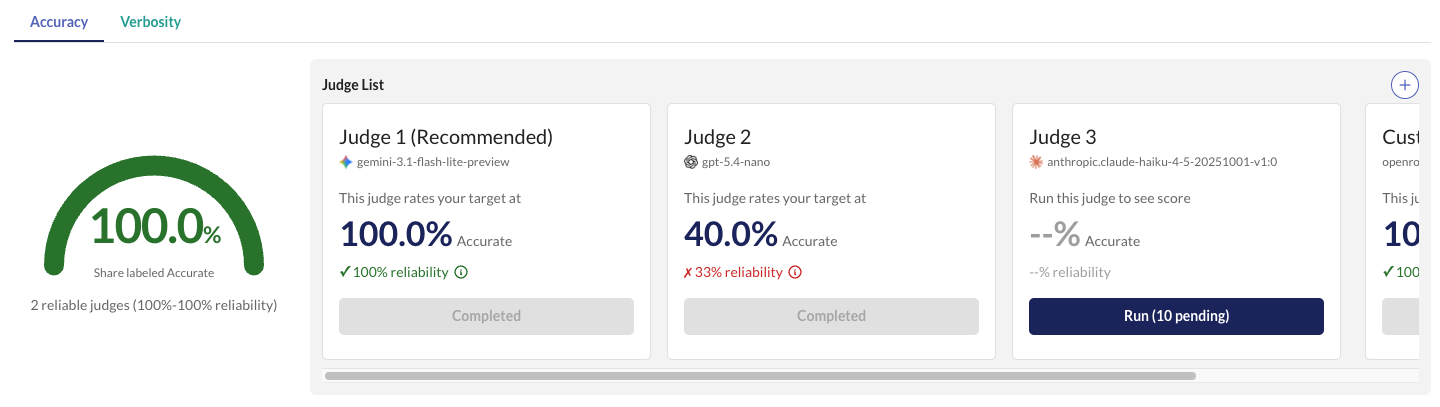
Each judge's reliability score is shown individually, calibrated against the human annotations you collected in the evaluation set page.
Aggregated Verdicts
For each response and rubric, Kaleidoscope aggregates scores from all aligned judges using majority vote:
| State | Meaning |
|---|---|
| Majority | Aligned judges agree on one option |
| Majority tied | Aligned judges split evenly - no clear winner |
| No aligned judge | No judges meet the reliability threshold |
| Override | A human manually edited the aggregated label |
| Pending | Scoring not yet complete for all aligned judges |
Users can manually override any aggregated verdict if you disagree with the majority.
Custom Judges
Users can add custom judges to the judge list above. Available judge models depend on which LLM providers are configured.
To create one, click Create Judge on the scoring page, choose a rubric, model, and name, and optionally customise the prompt template.